
Setup guide
How to get email on your Shopify domain
Last updated
Short answer
Shopify can forward email sent to your domain, but it doesn't give you an email account, so you can't send from you@yourstore.com with forwarding alone. To send and receive from your own address you need a email provider, such as HostedEmail.io, Google Workspace or Microsoft 365, connected to your domain with a few DNS records.
Shopify email forwarding
Free with domains bought through Shopify. Mail to your address is forwarded to an inbox you already use.
- Good for
- Receiving mail when you don't need to reply from your domain.
- Limits
- You can't send as you@yourstore.com. Replies come from your personal address.
A business email app inside Shopify
HostedEmail.io creates email accounts on your domain, managed and billed in Shopify admin.
- Good for
- Stores that want business email without opening another account.
- Extras
- Free setup help and free migration from your current provider.
Google Workspace or Microsoft 365
Business email bought and managed directly with Google or Microsoft.
- Good for
- Businesses that already use Google or Microsoft and are happy to manage it separately.
- Limits
- Separate sign-up, admin and billing outside Shopify. You add the DNS records yourself.
Set up email with HostedEmail.io
This takes about 15 minutes. Have access to wherever your domain's DNS is managed before you start.
Install the app
Open HostedEmail.io on the Shopify App Store and choose Install. Approve the charge screen. Forwarding is free, and you only pay for email accounts you create.
Choose your domain
The app lists the domains connected to your store. Pick the one you want to use, for example yourstore.com.
Add the DNS records
The app shows the records for your domain. If Shopify manages your domain, add them in Settings › Domains. If it's with another registrar, such as GoDaddy or Cloudflare, add them there. See the records below.
Create your email accounts
Add an address and password for each person, such as sam@yourstore.com. You can add aliases like sales@ and forwarding addresses at the same time.
Send a test message
Sign in at mail.hostedemail.io and send a message to a personal address, then reply to it. Then connect your phone and computer.
How long DNS takes
DNS changes usually take effect straight away, but can sometimes take an hour or more. Your old email keeps working until the MX record changes over.
The DNS records you'll add
HostedEmail.io needs four records: MX to receive your mail, SPF and DKIM to show the mail you send is genuine, and DMARC to tell other servers how to treat mail that fails those checks. The values are unique to your domain, including your DKIM key, so copy them from the app rather than from this page.
Only one SPF record
If your domain already has a TXT record starting v=spf1, add the include value from the app to that record instead of creating a second one. Two SPF records cause mail to fail checks.
What "@" means
Host @ means the domain itself. Some DNS providers want this field left blank, or ask for your full domain instead.
Set up on your phone and computer
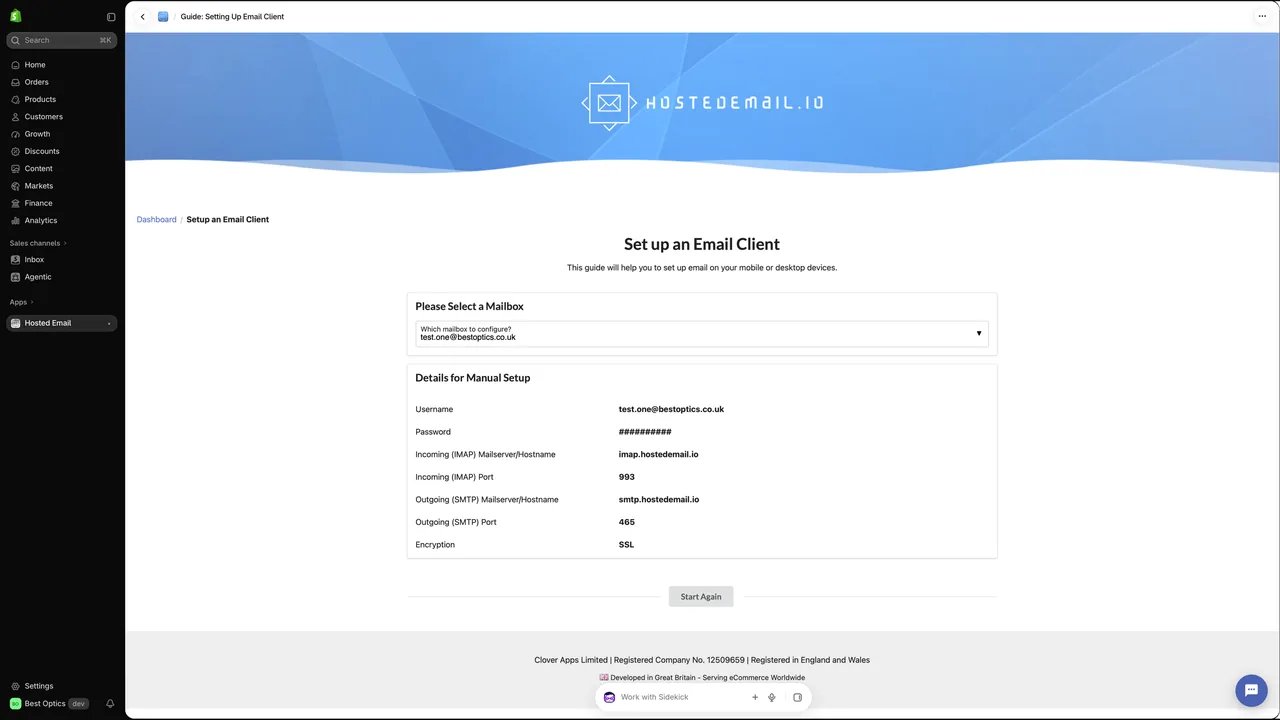
Use these settings in any email app. Your username is always your full email address.
| Setting | Incoming (IMAP) | Outgoing (SMTP) |
|---|---|---|
| Server | imap.hostedemail.io | smtp.hostedemail.io |
| Port | 993 | 465 |
| Security | SSL/TLS | SSL/TLS |
| Username | Your full email address | Your full email address |
| Password | Your email password | Your email password |
iPhone and iPad
- Open Settings › Apps › Mail › Mail Accounts › Add Account, then choose Other › Add Mail Account.
- Enter your name, email address and email password, then tap Next.
- Choose IMAP and enter the incoming and outgoing servers from the table above.
- Tap Save. Your mail appears in the Mail app within a minute.
Android
In the Gmail app, open Settings › Add account › Other. Enter your address, choose Personal (IMAP) and enter the servers from the table above.
Apple Mail on Mac
Choose Mail › Add Account, then Other Mail Account. Enter your name, address and email password, choose IMAP and enter the servers from the table above.
Prefer a browser?
Webmail works on any device at mail.hostedemail.io with nothing to set up.
Stuck? We'll help you set it up
If anything on this page doesn't work, or you'd rather not do it yourself, our support team will help. We can sort out your DNS records and talk you through setting up any phone, computer or email app, however much help you need. Email support@cloverapps.io or see Contact.
Set up and manage your business email in your Shopify admin panel.
Install HostedEmail.io, add your DNS records and create your first email account. Forwarding is free and email accounts are $5 per month each.